Cores
In Padas UI, the console, the Cores page registers Motion Engine instances (console: Cores; tree: core/): each Core row stores connection settings (host, port) the console uses to reach that engine.
Pipeline and workload placement are not configured here. Use Management → Cores and Management → Pipelines to assign pipelines and related work to an engine. Removing a Core row here only unregisters it in the console; it does not stop the Motion Engine on the host—confirm nothing in Management still references that registration before you delete.
Overview
This page lets you:
- Register Motion Engine instances the console can manage.
- Store host and port for console-to-engine API calls.
This page does not manage workload placement, pipeline assignment, or runtime scheduling.
Prerequisite: enrollment
Before the console can deploy or monitor an engine, it must be enrolled with the console (one-time CLI setup). See Installation — padas-motion → Enroll services.
You do not paste a token into the Cores form. After enrollment, the console authenticates to the engine automatically.
Cores list page
Open Cores (/cores). Use Create to add a row; use row Actions for view, edit, clone, or delete. Column filters sit under the headers; the footer shows totals and paging.
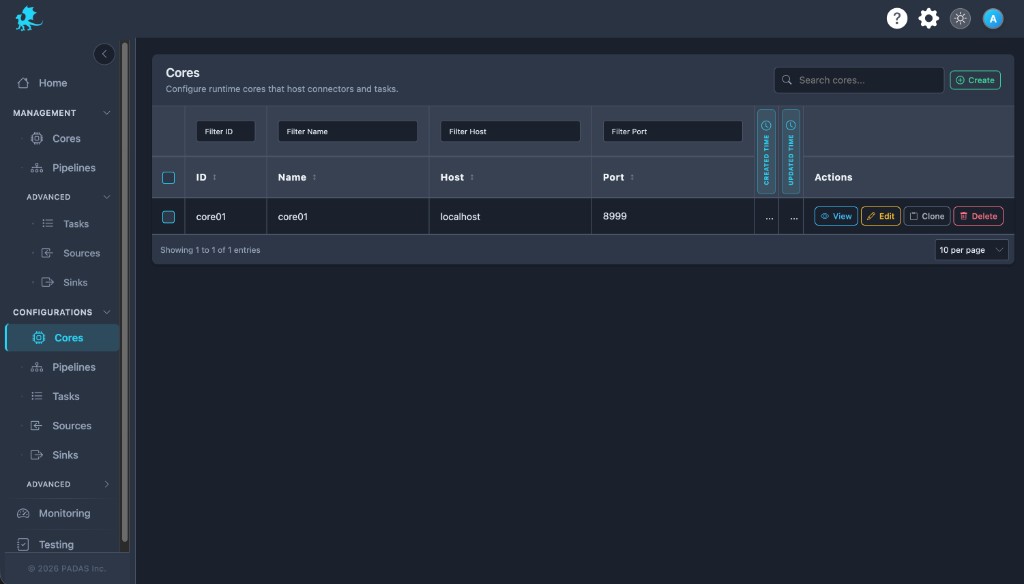
On these Configurations screens the layout is the same: Search and Create in the toolbar, Download / Upload for registry JSON (a full bundle can be imported from any tab), then a grid with filters on the row under the headers.
Each row has View (read-only), Edit, Clone, and Delete. Select multiple rows when you need bulk delete. Created and Updated time may show as narrow strips; use the control at the side of the table to expand or collapse those columns.
| Column | Description |
|---|---|
| ID | Stable identifier for this Core row in the console registry. |
| Name | Display label chosen at registration. |
| Host | Hostname or IP the console uses for the engine API. |
| Port | Engine API port (typically 8999). |
| Created Time / Updated Time | Row create and last update timestamps. |
| Actions | View, Edit, Clone, Delete. |
Create and edit
- Confirm the engine is enrolled and running (Installation — padas-motion).
- Open Cores and choose Create (or Edit on an existing row).
- Enter Core Name, Host, and Port. Optionally add a Description via + Add description.
- Save. Then follow Verification.
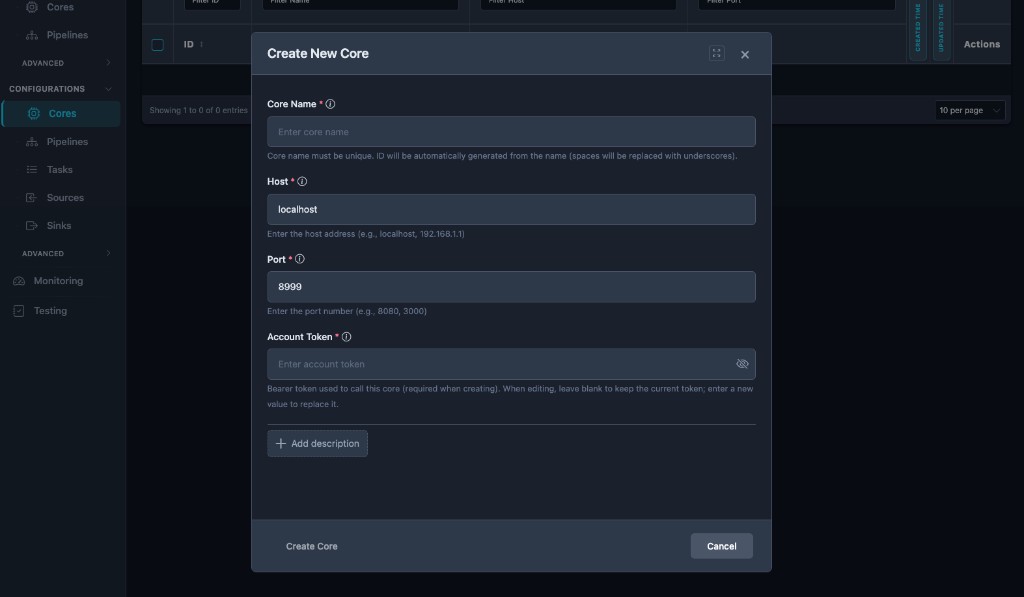
| Field | Role |
|---|---|
| Core Name | Unique label; drives display name and a derived row id. Immutable after create. |
| Host | Engine API hostname or IP as seen from the console host (default in the form is often localhost). |
| Port | Engine API port; must match engine configuration (default 8999). |
| Description | Optional operator notes. |
| Field | Create | Edit |
|---|---|---|
| Core Name | Required | Read-only |
| Host | Required | Editable |
| Port | Required | Editable |
Connectivity and authentication
The console calls each registered engine’s HTTPS API at https://<host>:<port>/api/v1/... (or http:// when engine TLS is off). Host and Port must match that engine’s bind and TLS settings (Motion Engine TOML).
| Deployment | Host guidance |
|---|---|
| console and engine on the same machine | localhost or 127.0.0.1 is usually correct. |
| console in Docker / Kubernetes, engine on the host | Do not use 127.0.0.1 from inside the container for the host’s engine. Use a LAN IP, host.docker.internal where supported, or a DNS name the pod can resolve. |
| TLS | If the engine uses a self-signed certificate, the console must trust it—otherwise deploy or status checks fail. Enrollment seeds trust on the engine host during setup. |
| Firewall | Allow inbound to the engine API port (default 8999) from the console host or pod network, not only from an operator laptop. |
Authentication (automatic)
After enrollment, the engine stores the credentials the console uses for API calls. Operators only register host and port here. If deploy or monitoring fails with authentication errors, confirm enrollment completed successfully and the engine was restarted after enroll.
Verification
After you save a Core registration:
- Save the row and wait for the console to persist it.
- From a host on the same network path as the console, confirm TCP/TLS reachability to
https://<host>:<port>. - In the console, open Home or Management → Cores and confirm the row shows expected health or status for your version.
- Optionally call
GET /api/v1/statusfrom the console host if you have API access for debugging.
End-to-end traffic after registration: Run a sample pipeline.
For multiple Cores, use a distinct Core Name per row and the correct Host / Port per instance.
Troubleshooting
See Troubleshooting & Logs → Padas UI registration and engine connectivity for the consolidated symptom table.
Related reading
- Install Padas Motion — install and enroll
- Run a sample pipeline → Register a Core
- Troubleshooting & Logs → leftover API objects — delete API-created engine registry objects before UI import if needed
- Motion Engine TOML — API port, TLS
- Security
- Naming conventions — registry object naming (separate from Core registration labels)