Version: 2.0.0 (Latest)

Quickstart: Core + UI

This quickstart validates Padas Core and Padas UI together: you bring both services up, register the engine in the console, apply the quickstart registry through the UI, assign the sample pipeline to that Core, and confirm source → task → sink traffic on a loopback TCP harness.

You will:

  1. Start Core and UI and verify the Core control plane responds.
  2. Access the UI, complete first-time administrator setup if required, and register a Core row the console can reach.
  3. Keep the bundled TCP helper running so the sink has a listener and the source receives synthetic events.
  4. Import padas-registry-quickstart.json, assign pipe-quickstart-main to your Core, and deploy.
  5. Validate pipeline health in the UI and [SINK] output in the helper terminal.

padas_tcp_quickstart_server.py is a single long-lived process with two runtime roles relative to Core: it produces newline-delimited syslog-style lines toward Core’s source listener, and it accepts the sink connector’s outbound TCP session for validation. Core’s source connector listens for inbound TCP; the sink connector initiates outbound TCP to the helper. Until assign-and-deploy completes, expect transient connection or retry noise; validation is meaningful once the pipeline is running and the task has emitted matching events.

Default Core API base URL is https://<CORE_HOST>:8999/api/v1/... unless [api.tls].enabled = false, in which case use http://. The API-only path for the same topology is Quickstart: Core only.

Outcomes and constraints

OutcomeDetail
Control planeRegistry objects are created through UI import and Management → Pipelines → Assign; Core still executes the same runtime lifecycle as any other deployment.
Co-locationRun the helper on the same host as Core by default so 127.0.0.1:8081 matches the sink connector; override with PADAS_TCP_SOURCE_HOST / bind and port env vars when Core is remote.
Sequential initializationThe quickstart depends on ordered steps: services up → API healthy → console access → Core registered → helper listening → bundle imported → assign-and-deploy → runtime validation.

Conflicting Core-only quickstart

If this Core already has quickstart objects from Quickstart: Core only (REST bundle push), remove them before this UI flow. Streams, connectors, and tasks left from the API path can desynchronize the console from engine state (IDs and registry rows no longer match a clean UI import).

Use the bundled delete script (same object IDs as padas-quickstart-core-api.json); resolve --bundle from the working directory or pass an absolute path. Prefer --token-file pointing at service-account.token instead of --token on the command line.

./padas_quickstart_delete_from_core.sh \
--core-url "https://127.0.0.1:8999" \
--token "YOUR_SERVICE_ACCOUNT_SECRET" \
--bundle padas-quickstart-core-api.json \
--insecure

Script options and ordering: Quickstart: Core only → Reference and tear down (--help on the script).

TCP helper and runtime validation (architecture)

ComponentBehavior
Sink connector (Core)After start, opens an outbound TCP client to 127.0.0.1:8081 (default). The helper must listen on that address before or by the time the sink connects; the connector retries per runtime policy.
Helper — sink sideListener on 0.0.0.0:8081 by default; receives sink-framed output for terminal validation ([SINK] lines).
Helper — source sideProducer sending synthetic firewall-style lines to 127.0.0.1:8080 (Core’s syslog TCP source port by default), with retry until the source listener is up.
Source connector (Core)Inbound listener for syslog-style payloads; traffic appears only after the pipeline and source are started post-deploy.
Validation linkUI Home shows connector and task state; the helper log confirms end-to-end delivery for lines that pass the sample PDL filter (parse_kv, action = "login", eval custom_field), so [SINK] may lag wall clock by several event intervals.

Operational note: in this guide, C follows console Core registration so the UI has a target engine before you import and assign; the helper must still be running before assign-and-deploy so the sink’s outbound connection can succeed.

Prerequisites

Complete Installation — Linux for Core and UI, including:

  • Core padas.toml under $PADAS_HOME/etc/ (Runtime configurations)
  • UI installed to your deployment path (for example /opt/padas/ui)
  • python3 on the host where you run the helper

Systemd units: padas-core.service, padas-ui.service (see installation guide).

Step 1 — Start Core and UI

If your package requires a one-time license acceptance, run the binary in the foreground first, then use the service manager.

Core

sudo systemctl start padas-core.service
sudo systemctl status padas-core.service

UI

sudo systemctl start padas-ui.service
sudo systemctl status padas-ui.service

Step 2 — Verify Core API availability

curl -sS --insecure https://127.0.0.1:8999/api/v1/status

Omit --insecure when curl trusts Core’s certificate. If [api.tls].enabled = false in padas.toml, use http://127.0.0.1:8999/api/v1/status.

Verify that system.status returns running.

Step 3 — Access the UI and complete bootstrap

Access the UI endpoint for your deployment environment (scheme, host, and port per your reverse proxy or local bind). Sign in with the initial administrator from first-time setup, or credentials your organization issued.

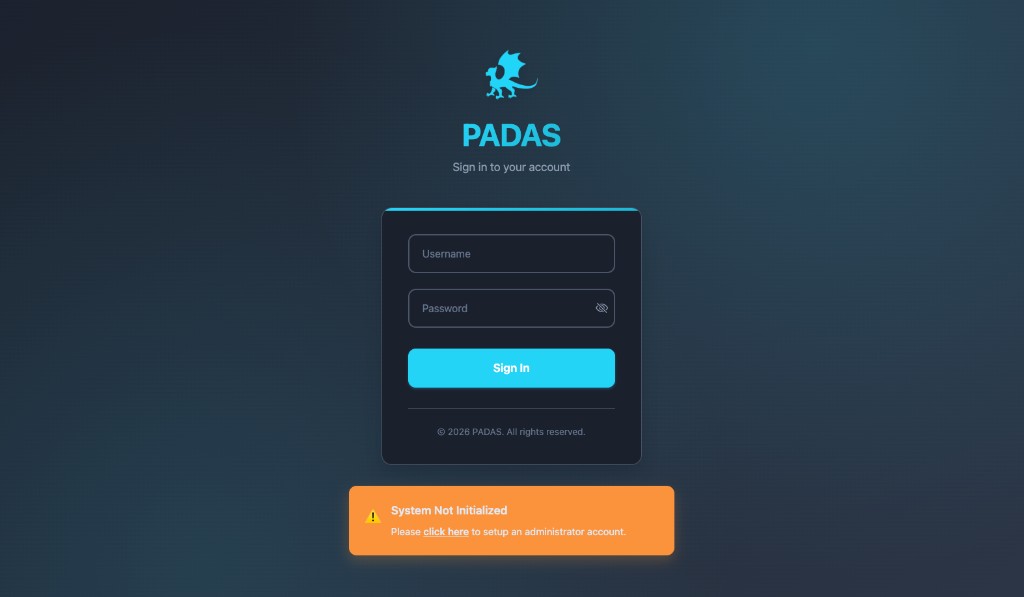
If no administrator exists yet, the sign-in page surfaces System Not Initialized. Use the banner link to run the bootstrap wizard. Bootstrap, roles, profile/password flows, and UI reference screenshots: Users, roles & permissions.

Sign-in page with System Not Initialized banner
First run: create the administrator from the banner when it appears.

Step 4 — Register a Core

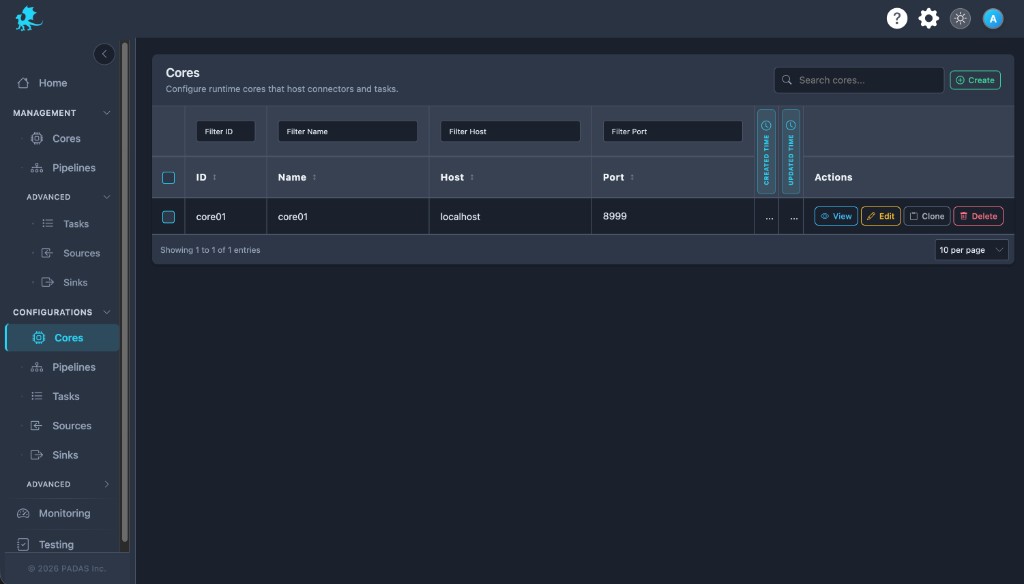
After sign-in, open Cores, then Create.

Cores configuration list with Create
Cores: register the engine the UI will manage.
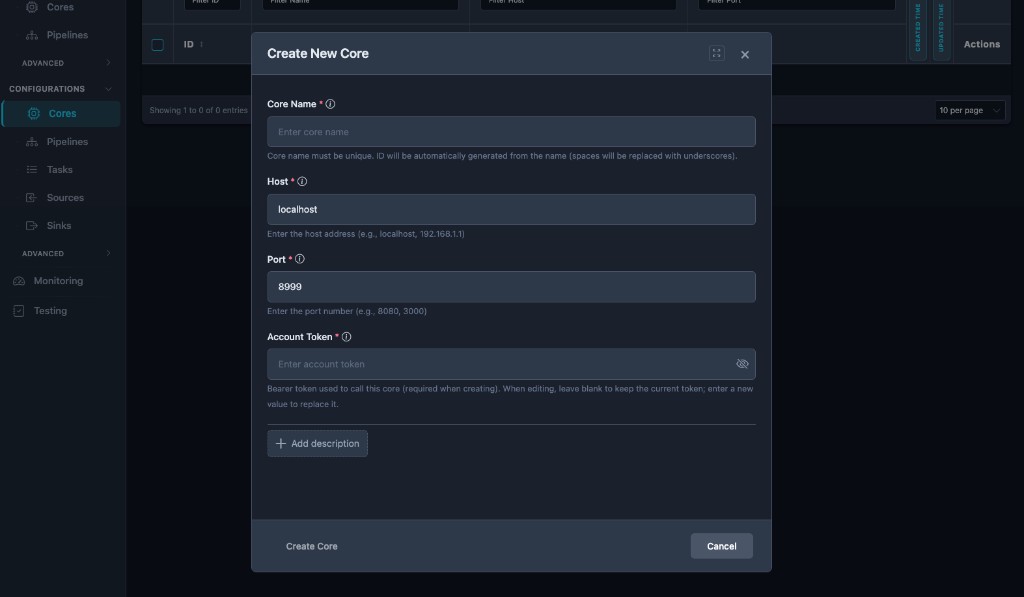
Create New Core modal with Core Name, Host, Port, Account Token, and optional Add description
Create New Core: name, host, port, and account token; use Add description for operational notes.
FieldValue
Core NameUnique, human-readable label for this engine.
HostAddress the UI service can reach (often localhost on a single-node lab).
Port8999 unless the API port was changed in padas.toml.
Account TokenContents of $PADAS_HOME/data/security/service-account.token on the Core host (for example /opt/padas/core/data/security/service-account.token when PADAS_HOME=/opt/padas/core). Core must have started at least once so the file exists.
DescriptionOptional: environment, owner, or change reference.

Naming patterns for connectors and related objects: Naming conventions.

Step 5 — Start the TCP helper

The quickstart registry expects syslog-style TCP: Core’s source listens on port 8080; Core’s sink connects outbound to 127.0.0.1:8081. Copy to the machine that runs the helper (typically co-located with Core):

python3 padas_tcp_quickstart_server.py

Startup banner summarizes bind and forward targets:

Padas TCP quickstart helper

Padas source connector (syslog TCP) should listen on:
Host: 0.0.0.0 (or reachable bind) Port: 8080

This script sends synthetic lines to:
127.0.0.1:8080

Padas sink connector should connect to:
address 127.0.0.1 port 8081 (Core process → loopback)

This script listens for sink TCP on:
0.0.0.0:8081

Keep the helper process running through registry import, assign-and-deploy, and validation. If Core runs on another host, set PADAS_TCP_SOURCE_HOST and ensure 8081 is reachable from Core (or change connector endpoints after import). Optional variables: PADAS_TCP_SOURCE_PORT, PADAS_TCP_SINK_BIND, PADAS_TCP_SINK_PORT, PADAS_QUICKSTART_EVENT_INTERVAL_SEC (see script header).

Step 6 — Import the registry bundle

Open Pipelines, Upload, and select padas-registry-quickstart.json.

Pipelines list with Upload
Pipelines → Upload: import the quickstart registry JSON.

Step 7 — Assign and deploy

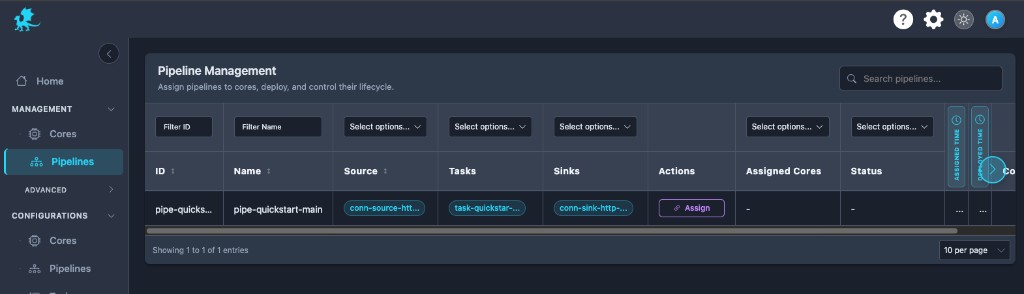
Open Management → Pipelines, select the imported pipeline, Assign, choose your Core, and confirm Assign and Deploy.

Management Pipelines with Assign
Management → Pipelines: attach the quickstart pipeline to the registered Core.

Core starts runtime components according to deployment semantics for the assigned bundle (connectors and task reach running / active when dependencies and TCP peers are satisfied).

Step 8 — Validate traffic

On Home, confirm pipe-quickstart-main shows source → task → sink in a healthy state.
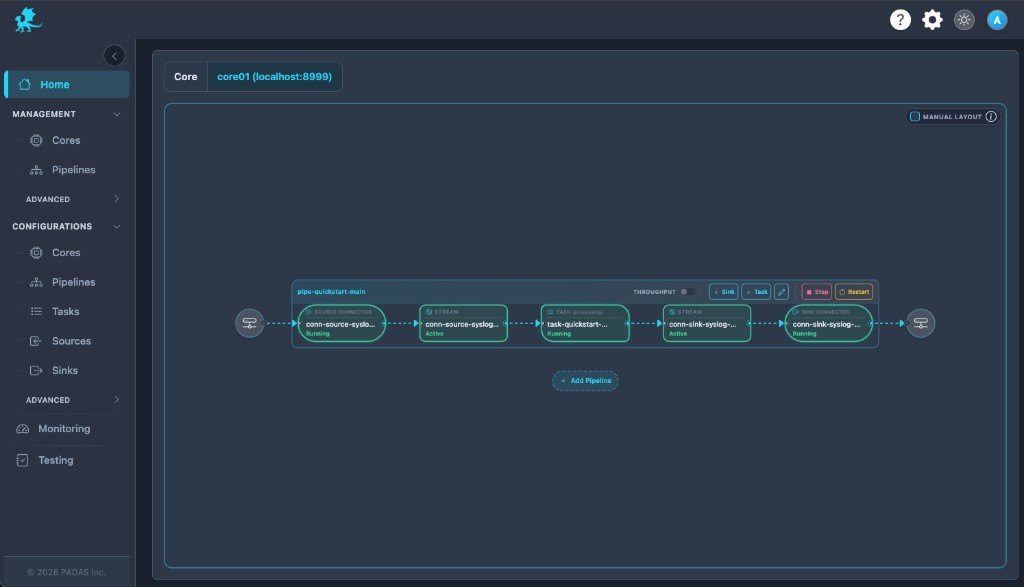
Home: pipe-quickstart-main with syslog source and sink connectors, streams, and task all Running or Active
After assign and deploy: pipe-quickstart-main with source → stream → task → stream → sink healthy.

In the helper terminal, verify [SINK] lines after events flow. The sample task filters aggressively; if you see [SOURCE] activity without [SINK], allow additional wall time for matching templates.

Example [SINK] line (exact framing depends on sink configuration; expect custom_field and parsed fields when the login-style path matched):

[SINK] <14>May 11 07:46:29 - -: {"action":"login","custom_field":"Yey, this is my first task!",...}

Troubleshooting

See Troubleshooting & Logs → Quickstart: Core + UI.