Pipelines
Pipelines (/pipelines) is where you define pipeline definitions in the registry: each row is a workflow that names one source connector, ordered tasks, and one or more sink connectors.
Management → Pipelines assigns that definition to a Core and deploys it. Connectors and tasks must already exist before you reference them here.
Overview
What is a pipeline?
A pipeline definition is a reusable workflow object in the registry. It specifies:
- One source connector — inbound data entry point.
- Ordered tasks — processing stages; tasks execute in list order, and each task’s output feeds the next.
- One or more sink connectors — outbound destinations.
Streams carry events between those stages inside the runtime; the UI form references connectors and tasks directly, while streams wire stages under the hood (Tasks, Streams).
For product context, see What is PADAS? — Build pipelines.
Configuration vs Management
| Area | Role |
|---|---|
| Pipelines (this page) | Define the pipeline: name, source, ordered tasks, sinks. |
| Management → Pipelines | Deploy (silent bind + push), Sync (equalize drift), or Remove the pipeline on Core(s). |
Typical flow:
- Create source and sink connectors and tasks (Configuration pages or prior import).
- Define the pipeline on this page (source → tasks → sinks).
- Under Management → Pipelines, Deploy the pipeline to a Core (binds membership and pushes constituents).
- Use Core Actions / Advanced to start workload execution when ready.
Deleting a pipeline row here removes the registry definition only—confirm Management → Pipelines and your Cores no longer need it before Delete.
Pipelines list page
Open Pipelines. Use Create for a new definition; row Actions support view, edit, and delete (no Clone — a pipeline is a composition of existing source/task/sink ids, not a single config blob). Filters sit under column headers; the footer shows counts and paging.
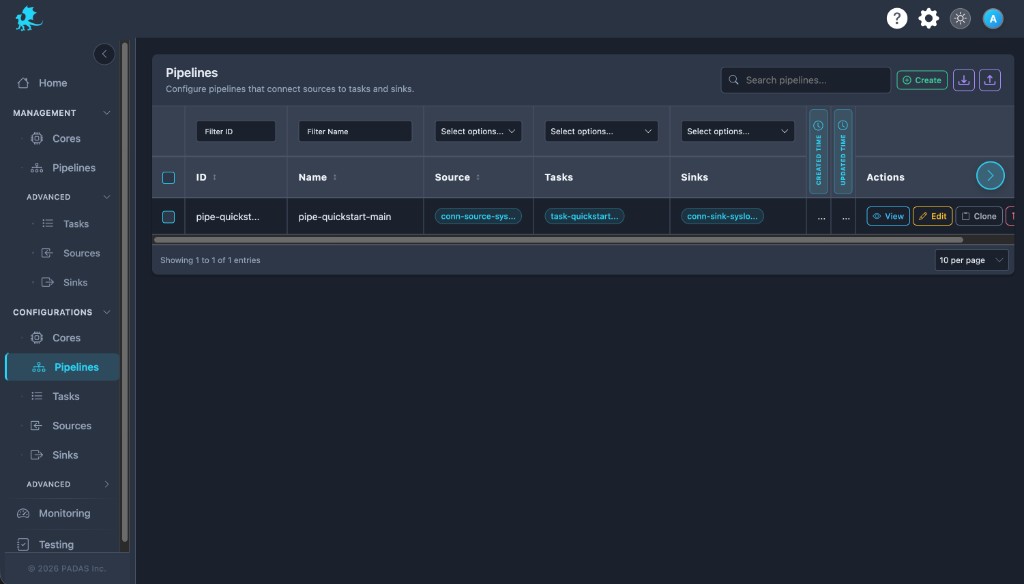
On these Configurations screens the layout is the same: Search and Create in the toolbar, Download / Upload for registry JSON (a full bundle can be imported from any tab), then a grid with filters on the row under the headers.
Each row has View (read-only), Edit, Clone, and Delete. Select multiple rows when you need bulk delete. Created and Updated time may show as narrow strips; use the control at the side of the table to expand or collapse those columns.
Pipelines omit Clone. To define another workflow, Create a new pipeline (or reuse constituents via Apply/Link on Home). Clone remains available on Tasks, Sources, Sinks, and Streams.
| Column | Description |
|---|---|
| ID | Stable pipeline id in the registry and API. |
| Name | Human-readable pipeline name. |
| Source | Source connector id for this workflow. |
| Tasks | Task ids in execution order. |
| Sinks | Sink connector ids that receive pipeline output. |
| Created Time / Updated Time | Audit timestamps. |
| Actions | View, Edit, Delete (no Clone). |
Create New Pipeline
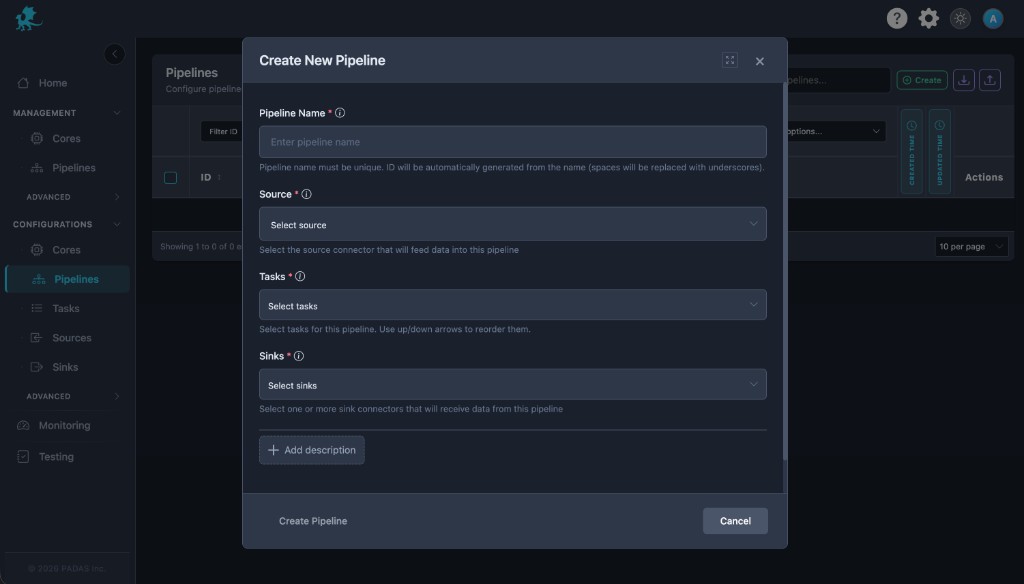
- Open Pipelines and choose Create.
- Enter a unique Pipeline Name and optional Description (+ Add description).
- Select the Source connector (must already exist).
- Add Tasks and order them with the up/down controls. The first task consumes the source; each next task consumes the previous task’s output.
- Select one or more Sink connectors, then Save.
Deploy / Sync / Remove happen later under Management → Pipelines.
Task order
- Tasks run in the order shown in the form (registry
task_idsarray). - The output of task N is the input to task N+1; the source feeds the first task.
- Streams connect source, tasks, and sinks inside the engine; connector and task definitions must be consistent with that wiring (Tasks).
Key form fields
| Field | Purpose |
|---|---|
| Pipeline Name | Required display name; registry id is derived (e.g. spaces → underscores). Must be unique among pipelines. |
| Source | Required source connector id (source_id). |
| Tasks | Required ordered task ids (task_ids); at least one. Use arrows to reorder. |
| Sinks | Required one or more sink connector ids (sink_ids). |
| Description | Optional operator notes. |
Required configuration
To save a valid pipeline row:
- Source connector — must exist; referenced by
source_id. - Tasks — at least one existing task id; order defines execution.
- Sinks — at least one existing sink connector id.
- Referenced objects — connectors and tasks must already be defined (or imported) so ids resolve.
Task source and sink stream wiring must match how this pipeline connects those objects (Tasks).
Sample registry bundle
An example pipeline definition bundled with the docs: padas-registry-quickstart.json. Import via the UI on this page, then assign under Run a sample pipeline.
Related pages
- Sources — ingress connector definitions pipelines reference
- Sinks — egress connector definitions pipelines reference
- Tasks — task definitions and stream wiring
- Streams — stream ids tasks use
- Management → Pipelines — assignment and deployment