Cores
In Padas UI, the console, Services → Cores registers Motion Engine instances (console: Cores; tree: core/): each Core row stores connection settings (host, port) and drives enrollment (service client client_id = core id).
Pipeline and workload placement are not configured here. Use Management → Cores and Management → Pipelines to assign pipelines and related work to an engine. Removing a Core row here unregisters it in the console and removes the linked service client; it does not stop the Motion Engine on the host—confirm nothing in Management still references that registration before you delete.
Overview
This page lets you:
- Register Motion Engine instances the console can manage (host and port).
- Issue enroll / rotate codes so the engine can bind to the console (
padas enroll). - See Enroll status (Pending / Enrolled / Revoked).
This page does not manage workload placement, pipeline assignment, or runtime scheduling.
Prerequisite: engine package on the host
Install the nested Motion Engine package, then use this page to Create the Core and Enroll code. See Installation — padas-motion → Enroll the engine.
You do not paste a token into the Cores form. After enrollment, the console authenticates to the engine automatically.
Cores list page
Open Services → Cores (/cores). Use Create to add a row; use row Actions for view, edit, clone, delete, Enroll code, or Rotate & enroll code. Column filters sit under the headers; the footer shows totals and paging.
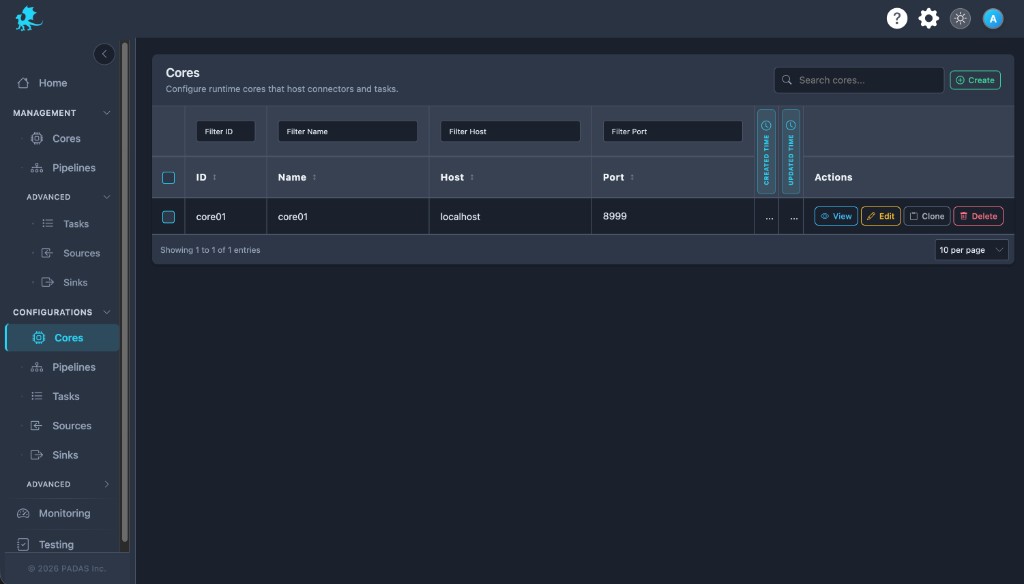
On these Configurations screens the layout is the same: Search and Create in the toolbar, Download / Upload for registry JSON (a full bundle can be imported from any tab), then a grid with filters on the row under the headers.
Each row has View (read-only), Edit, Clone, and Delete. Select multiple rows when you need bulk delete. Created and Updated time may show as narrow strips; use the control at the side of the table to expand or collapse those columns.
| Column | Description |
|---|---|
| ID | Stable identifier (also the S2S client_id). |
| Name | Display label chosen at registration. |
| Host | Hostname or IP the console uses for the engine API. |
| Port | Engine API port (typically 8999). |
| Enroll | Pending until padas enroll succeeds; then Enrolled. |
| Created Time / Updated Time | Row create and last update timestamps. |
| Actions | View, Edit, Clone, Delete, Enroll code (pending), Rotate & enroll code (enrolled). |
Create and enroll
- Install the engine package on the host (Installation — padas-motion).
- Open Services → Cores and choose Create.
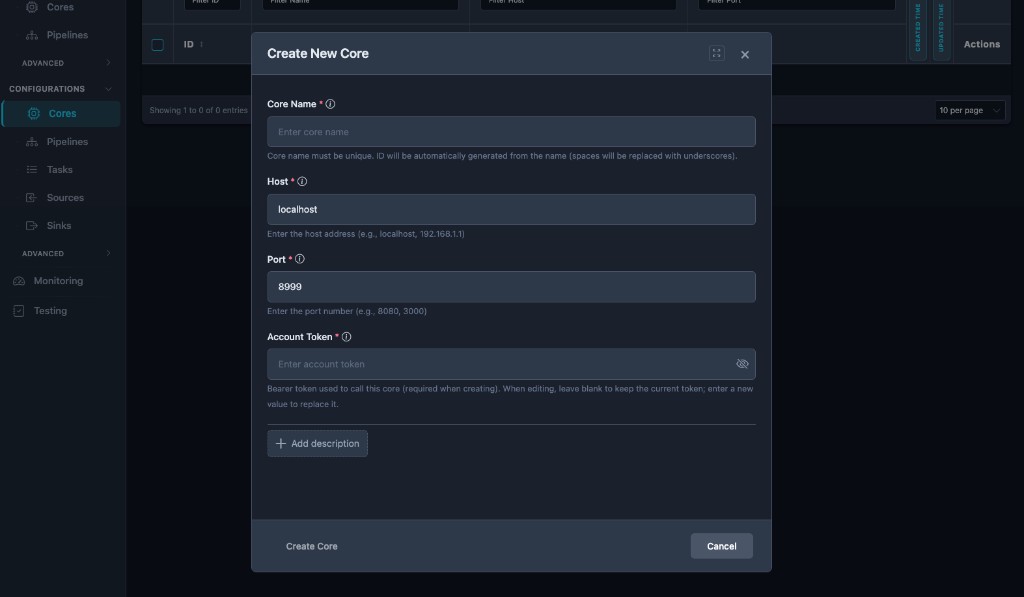
- Enter Core Name, Host, and Port. Optionally add a Description via + Add description. Save — the console also registers the service client (
client_id= core id). - On the row: Enroll code. Copy the CLI from the toast and run
padas enrollon the engine host (code ~15 min, single-use). - After enroll succeeds, Enroll shows Enrolled. Start the engine, then follow Verification.
| Field | Role |
|---|---|
| Core Name | Unique label; drives display name and a derived row id (and enroll client_id). Immutable after create. |
| Host | Engine API hostname or IP as seen from the console host (default in the form is often localhost). |
| Port | Engine API port; must match engine configuration (default 8999). |
| Description | Optional operator notes. |
| Field | Create | Edit |
|---|---|---|
| Core Name | Required | Read-only |
| Host | Required | Editable |
| Port | Required | Editable |
Connectivity and authentication
The console calls each registered engine’s HTTPS API at https://<host>:<port>/api/v1/... (or http:// when engine TLS is off). Host and Port must match that engine’s bind and TLS settings (Motion Engine TOML).
| Deployment | Host guidance |
|---|---|
| console and engine on the same machine | localhost or 127.0.0.1 is usually correct. |
| console in Docker / Kubernetes, engine on the host | Do not use 127.0.0.1 from inside the container for the host’s engine. Use a LAN IP, host.docker.internal where supported, or a DNS name the pod can resolve. |
| TLS | If the engine uses a self-signed certificate, the console must trust it—otherwise deploy or status checks fail. Enrollment seeds trust on the engine host during setup. |
| Firewall | Allow inbound to the engine API port (default 8999) from the console host or pod network, not only from an operator laptop. |
Authentication (automatic)
After enrollment, the engine stores the credentials the console uses for API calls. Operators register host and port on Services → Cores and complete Enroll code there. If deploy or monitoring fails with authentication errors, confirm enrollment completed successfully and the engine was restarted after enroll.
Verification
After you save a Core registration:
- Save the row and wait for the console to persist it.
- From a host on the same network path as the console, confirm TCP/TLS reachability to
https://<host>:<port>. - In the console, open Home or Management → Cores and confirm the row shows expected health or status for your version.
- Optionally call
GET /api/v1/statusfrom the console host if you have API access for debugging.
End-to-end traffic after registration: Run a sample pipeline.
For multiple Cores, use a distinct Core Name per row and the correct Host / Port per instance.
Troubleshooting
See Troubleshooting & Logs → Padas UI registration and engine connectivity for the consolidated symptom table.
Related reading
- Install Padas Motion — install and enroll
- Run a sample pipeline → Register a Core
- Troubleshooting & Logs → leftover API objects — delete API-created engine registry objects before UI import if needed
- Motion Engine TOML — API port, TLS
- Security
- Naming conventions — registry object naming (separate from Core registration labels)